
Scripting#
Writing Scripts#
You may want to take a look at the included example script.
To start a script create a new Python file (example: my_new_script.py).
Then import magscope and create a script instance.
The instance can be called anything (it does not need to be called “my_script”).
For example:
import magscope
from magscope.ipc_commands import *

my_script = magscope.Script()
To add a step to the script, call the append method. For example we can call the
SleepCommand to pause our script for 5 seconds like this:
my_script.append(SleepCommand(5))
There are lots of built-in script commands. A complete list is provided Scripting Commands.
Running scripts#
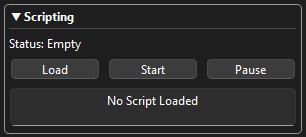
To run a script navigate to the “Scripting Panel”.
MagScope comes with a lightweight scripting runtime that allows you to queue up GUI interactions and hardware commands for repeatable experiments.
A script is an instance of magscope.Script where each call records a step to be executed.
First, create a script following the details below. An example script is available. Second, load the script by clicking “Load” and selecting the Python script. Once loaded the Scripting panel should say “Loaded”. Third, click “Start”. You can pause your script while it is running. Or once it is “Finished” you can run it again by clicking “Start”.
Adding a custom script command#
You can add your own custom functions to the scripting system by pairing an IPC
command dataclass with a manager method decorated by both
register_script_command and register_ipc_command.
When implmenting custom script commands it works best if you split up your files.
In this example there is the main.py for launching magscope, the custom_command.py file for
creating a HardwareManager/Command, and the custom_script.py for the actual script loaded into MagScope.
You can see the files for this example on GitHub in examples/custom_script.
Or here:
""" main.py """
from custom_command import HelloManager
import magscope

scope = magscope.MagScope()
scope.add_hardware(HelloManager())
scope.start()
""" custom_command.py """
from dataclasses import dataclass

from magscope.hardware import HardwareManagerBase
from magscope.ipc import register_ipc_command
from magscope.ipc_commands import Command
from magscope.utils import register_script_command

@dataclass(frozen=True)
class HelloCommand(Command):
    name: str

class HelloManager(HardwareManagerBase):
    def connect(self):
        self._is_connected = True

    def disconnect(self):
        self._is_connected = False

    def fetch(self):
        pass

    @register_ipc_command(HelloCommand)
    @register_script_command(HelloCommand)
    def say_hello(self, name: str):
        print(f"Hello {name}", flush=True)
""" custom_script.py """
import magscope
from custom_command import HelloCommand

script = magscope.Script()
script.append(HelloCommand("Jamie"))
script.append(HelloCommand("Abhishek"))
script.append(HelloCommand("Teague"))
You can also check a command was correctly registered by running MagScope with print_script_commands to True.
This will print a list of all registered script commands and then close.
scope = magscope.MagScope(print_script_commands=True)
scope.start()