
User Guide#
This guide walks through MagScope from the point of view of a new user at the graphical interface. It starts with the simulated-camera demo, then explains the same controls you will use during real microscope acquisition.
If MagScope is not installed yet, start with Getting Started. If you are connecting a lab camera or hardware manager, keep Connect Your Camera and Connect Your Hardware nearby, but use this page first to learn the interface.
What This Guide Covers#
The sections follow a normal first session:
Launch the demo.
Identify the main window areas.
Add and manage bead ROIs.
Start acquisition and understand what is being processed.
Record a short first dataset and check the saved files.
Choose what data to save and where it should go.
Read live plots and analysis panels.
Edit preferences and layout.
Use locking, scripting, and hardware-aware panels.
Shut down cleanly and recover from common beginner problems.
The screenshots use MagScope’s simulated bead camera. Real cameras and motors may expose different settings, but the window layout and workflow concepts are the same.
Launch the Demo#
MagScope includes a simulated camera, so you can open the full GUI without microscope hardware. From a Python interpreter in the environment where MagScope is installed, run:
import magscope

scope = magscope.MagScope()
scope.start()
The call to start() opens the GUI and starts the MagScope manager
processes. In the default demo, the simulated camera begins producing bead
images immediately.

Important lifecycle rule: a MagScope instance can only be started once. If
you close MagScope and want to launch it again from the same Python session,
create a new MagScope object before calling start() again.
First Look at the Main Window#
The default window has four main areas:
The top bar, with
Preferences,Layout,Tools,Z-LUT,Help, and the search box.The control tabs on the left:
Run,Analysis,Locking, andMotors.The
Live Cameraviewer, which shows the latest camera image and bead ROIs.The
Live Plotsviewer, which shows tracking values once data reaches the plot buffer.
The control tabs keep related panels together. You do not need to understand
every panel before using MagScope. For a first session, start with the Run
tab, then move to Analysis once bead tracking data is available.
Run Tab#
The Run tab contains the panels most users check first: status, recording
and saving, camera settings, and scripting.

Use this tab to answer practical acquisition questions:
Is the GUI updating?
Are video processors keeping up?
Is frame processing enabled?
Is data saving enabled?
Which camera settings are currently exposed?
Is a script loaded or running?
Analysis Tab#
The Analysis tab contains plot settings and live diagnostic panels.

Use this tab when you want to choose a plotted bead, subtract a reference bead, adjust plot limits, or temporarily enable diagnostic views such as the histogram or radial profile monitor.
Locking Tab#
The Locking tab contains XY and Z feedback controls.

These controls are useful after ROIs, tracking, and hardware connections are working. New users should first learn acquisition and plots before enabling automatic corrections.
Motors Tab#
The Motors tab is populated by registered hardware managers. In the demo,
no user hardware managers are registered, so MagScope shows a placeholder.

When hardware managers are present, this tab is where their user-facing control panels appear. The exact controls depend on the manager: a focus motor might show position, target, and speed controls, while a stage, light source, or other device could expose different fields. Treat the tab as the operator surface for hardware that was registered before MagScope started.
Before relying on a hardware panel during acquisition:
Confirm the expected device panel appears in
Motors.Confirm the displayed units and limits match the physical instrument.
Confirm the values update while the device is connected or moving.
Practice with conservative movements before combining hardware motion with saving, scripts, or lock controls.
When you are ready to add motors, stages, lights, or other devices to a custom launch script, see Connect Your Hardware.
Work With Panels and Search#
The left side is organized into workflow tabs, and each tab contains titled panels. If a tab has more controls than fit on screen, scroll the controls area to reach the lower panels.
Use the search box in the top bar when you know the name of a setting but not
where it lives. For example, searching for ROI points you toward ROI-related
controls and settings.

Search helps you find controls. It does not start acquisition, change settings, or save data by itself. You still need to inspect and confirm the highlighted control.
Live Camera and Bead ROIs#
The Live Camera viewer shows the most recent image from the camera. In the
demo, this image is generated by the simulated bead camera.

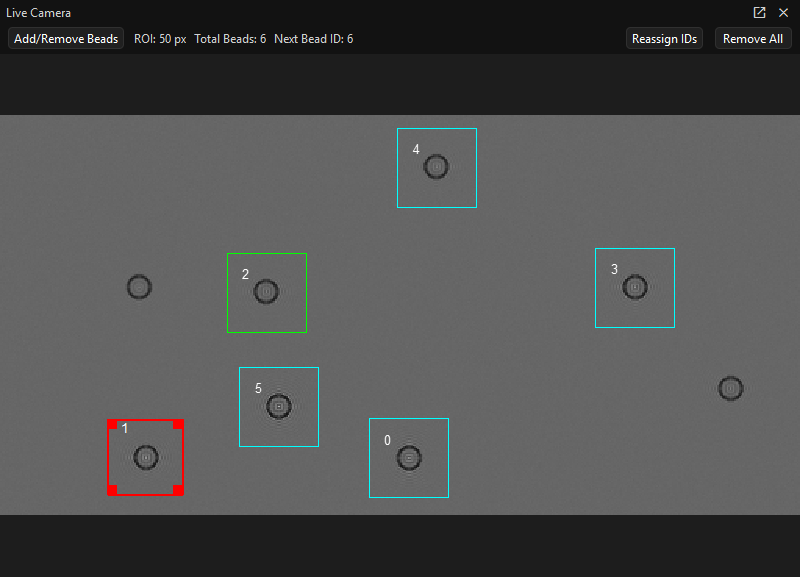
A bead ROI is the square region MagScope uses to crop around one bead before tracking it. Each ROI has an integer ID. The same ID is used in plot settings, track data, lock settings, and some scripts.
ROI colors indicate state:
Cyan ROIs are ordinary tracked beads.
Red is the selected bead for plotting and profile monitoring.
Green is the reference bead used for relative plots.
Bead Toolbar#
The toolbar above the camera is the quickest place to check and manage the current ROI set:
Add/Remove Beadsopens a short reminder of the click actions for adding, selecting, moving, and removing bead ROIs.ROI: <size> pxshows the current square ROI size in camera pixels. Change this inPreferencesbefore adding a new batch of beads.Total Beadsshows how many ROIs are currently active.Next Bead IDshows the ID that will be assigned to the next new bead.Reassign IDsrenumbers the current ROIs from0upward. Use it when removed beads have left gaps in the ID sequence and you want a compact set of IDs before recording.Remove Allclears every bead ROI and resets the next ID to0. Use it only when you want to rebuild the ROI list.
Reassign IDs changes the IDs used by plot settings, lock settings, saved
track rows, and scripts. Check selected/reference bead settings after
renumbering. Remove All also clears the current selection/reference state,
so add or select beads again before tracking or locking.
Manual ROI Workflow#
For a basic manual workflow:
Use the
Live Cameraviewer to identify beads.Left-click the image near a bead to add an ROI.
Left-click an existing ROI to make it active and selected.
Drag the active ROI if it needs to be repositioned.
Right-click an ROI to remove it.
Use
Reassign IDsif the IDs have gaps and you want them renumbered.Use
Remove Allonly when you want to clear the current ROI set.

If you click a bead but no ROI appears, check that the click landed inside the camera image and that the view is not still busy updating. If the ROI appears in the wrong place, drag it to the bead center or remove it and add it again. Near the image edge, MagScope keeps the ROI inside the camera image, so the box may be shifted away from the exact click position.
Auto Bead Selection#
For images with many similar beads, use Tools > Auto Bead Selection to
start from one seed bead and let MagScope propose matching ROIs.

The dialog freezes the current image, marks the seed bead, and highlights
proposed matches with score labels. Move the Score Threshold slider to show
fewer or more proposed beads. Click Accept Proposed Beads only after the
highlighted ROIs match the beads you want to track.
After accepting the proposal, the new ROIs appear in the Live Camera view
with normal bead IDs.
Acquisition Basics#
MagScope separates acquisition into two related actions:
Processing frames, controlled by
Acquire.Writing data to disk, controlled by
Saving.
Processing can be on while saving is off. This is useful when you are setting up ROIs, checking tracking quality, or adjusting plots before recording data. Saving should be enabled only after the output folder and data mode are correct.
The usual beginner workflow is:
Launch MagScope.
Confirm the live camera is updating.
Add or check bead ROIs.
Leave
Acquireenabled so frames are processed.Watch the status panel and live plots.
Choose a save folder.
Choose a data mode.
Enable
Savingwhen you are ready to record.Disable
Savingbefore changing folders or ending the run.
First Recording Walkthrough#
Use this checklist the first time you want to make a small recording. It keeps setup, tracking, saving, and file checking in one sequence.
Launch MagScope.
Start the demo or your configured microscope setup as described in Launch the Demo. Wait for the main window to appear and confirm the
Live Cameraimage is updating.Add and select bead ROIs.
In the
Live Cameraviewer, add one or more bead ROIs manually or withTools>Auto Bead Selection. Click the bead you want to inspect so it becomes the selected bead. The selected bead is the one used by several plot, profile, and lock controls.Wait for tracking and plots.
Keep
Acquireenabled inRecording and Saving. Watch theStatuspanel andLive Plotsview until the display is updating and the selected bead has visible tracking data. If the plots are empty, confirm at least one ROI exists and thatAcquireis checked.Choose a save folder.
In
Recording and Saving, clickBrowse...besideFolderand pick a writable experiment folder. Do this before enablingSaving. Avoid changing the folder while saving is active.Pick a data mode.
For a first recording, choose
Trackunless you specifically need video.Trackwrites tracking HDF5 files and is usually the smallest, safest output. UseTrack and Video (ROIs)when you also want cropped ROI video. Use full-frame video modes only when you need the entire camera frame.Enable saving.
Check
Saving. LeaveAcquirechecked. Let the recording run long enough for at least one processing stack to complete. During this time theRecording and Savingpanel is highlighted, which is a useful reminder that data is being written to disk.Stop saving.
Uncheck
Savingbefore changing folders, changing data modes, closing MagScope, or ending the experiment. You can leaveAcquireon if you want to keep watching the live camera and plots without writing more files.Check the created files.
Open the folder you selected and look for timestamped output files:
Tracking Data <timestamp>.h5appears forTrack,Track and Video (ROIs), andTrack and Video (Full).Video <timestamp>.tiffappears for the video data modes.Bead Profiles <timestamp>.txtappears when profile saving is enabled.Hardware managers can also append telemetry to
<HardwareManagerName>.txtwhile saving is enabled.
MagScope appends tracking batches to HDF5 files. A recording usually creates one
Tracking Datafile, but automatic duration-based rotation, theStart New Tracking Filebutton, or saving-setting changes can create additional timestamped files. If no files appear, check that the folder is writable,Savingwas enabled, the selected data mode includes the output you expected, and enough time passed for frames to be processed.
Recording and Saving Data#
The Recording and Saving panel is the main place to control processing and
output.

The controls are:
Acquireenables frame processing.Savingenables writing selected output data to disk.Folderis the destination for saved data.Datachooses the output mode.
Choose the folder before enabling saving. A saving-ready state has both
Acquire and Saving checked and a real folder selected.

The exact folder picker can look different depending on your operating system.
The important step is to choose a writable experiment folder before turning on
Saving.

Data Modes#
The available data modes are:
Tracksaves bead tracking results. This is the best default for most magnetic-tweezers experiments.Track and Video (ROIs)saves tracking results and cropped ROI video.Track and Video (Full)saves tracking results and full-frame video.Video (ROIs)saves cropped ROI video without track output.Video (Full)saves full-frame video without track output.
Tracks are usually much smaller than video and are the main analysis product. Full-frame video is useful for debugging and record keeping, but it is the heaviest option. If the video buffer fills, reduce saved video volume, reduce the number of tracked beads, or review buffer and processor settings.
Tracking Data Files#
Track modes write HDF5 files named Tracking Data <timestamp>.h5. The file
contains a tracking group with these core datasets:
frame_timestamps_nsstores one Unix epoch timestamp, in nanoseconds, for each processed frame.frame_offsetsmaps each frame to rows in the record datasets. For frame indexi, records start atframe_offsets[i]and stop beforeframe_offsets[i + 1].bead_idsstores the bead ID for each record.positions_nmstores X, Y, and Z bead positions in nanometers. Z values can beNaNwhen no active Z-LUT provides a valid Z estimate.roi_positions_pxis present only whenSave tracking ROI positionsis enabled in Preferences. It stores the ROI top-left X and Y position in camera pixels for each record.
The group also stores schema_version, include_roi_positions,
min_frame_timestamp_ns, and max_frame_timestamp_ns attributes. Records
are stored in writer append order. When multiple video processors finish
batches out of order, use frame_timestamps_ns for acquisition-time ordering
or the batch datasets to inspect processing order:
batch_sequencerecords the original video-task enqueue order for each appended batch.frame_batch_sequencestores the batch sequence for each frame.batch_frame_start,batch_frame_count,batch_record_start, andbatch_record_countdescribe the frame and record ranges written by each batch.
Status and Camera Settings#
Use the Status panel to check whether the GUI and processing pipeline are
keeping up.

Key status fields:
Display Rateis how often the GUI updates the displayed image. It is not necessarily the camera frame rate.Video Processorsshows how many processing workers are busy.Video Buffershows how full the shared video buffer is.
The video buffer should normally stay comfortably below full. A full buffer means frames are arriving faster than they can be processed or saved. That can lead to old frames being purged before processing.
When old buffered frames are purged, the status panel shows
Video Buffer Purged at: with the latest purge time. Treat this as a sign
that acquisition data was dropped before processing could catch up.
The Camera Settings panel shows settings exposed by the active camera.

In the demo, these are simulated settings such as frame rate, bead counts, bead motion, gain, and random seed. With a real camera, the available settings depend on the camera adapter you provide. See Connect Your Camera for details.
Live Plots and Analysis#
The Live Plots viewer displays bead tracking values and optional hardware
data. At startup, or before track data has reached the plot buffer, it may show
settled axes with no red traces. That is normal. It can take tens of seconds
for the first processed stack to reach the plots and for the axes to settle.

Once tracking data is available, the selected bead’s X, Y, and Z values appear as red traces.

If plots stay blank longer than expected:
Confirm
Acquireis checked.Confirm at least one bead ROI exists.
Confirm the selected bead ID exists.
Wait for the processing and plot buffers to update.
Check the status panel for a full video buffer or busy processors.
Plot Settings#
The Plot Settings panel controls what the live plots show. It does not
change tracking, saving, or the data already stored in buffers.

Selected and reference beads#
Selected Bead (red) is the bead ID drawn in the live plots. The same
selected bead is also used by diagnostics such as the radial profile monitor.
Reference Bead (green) is optional. Leave it blank for ordinary absolute
selected-bead plots. Enter a bead ID when you want the plot to show selected
bead motion relative to another tracked bead. Referenced plots use only
timepoints where both bead IDs have data. If either bead is missing, or if the
two beads do not share matching timepoints, the referenced plot can be blank or
show fewer points than expected.
For X and Y, the referenced value is selected bead minus reference bead. The Z plot also follows the Z-LUT convention used by MagScope, so its displayed relative sign is adjusted for that calibration direction.
Limits and auto-scaling#
The Limits rows accept optional min and max values for X, Y, Z, and time.
Leave a box blank to let the plot choose that limit automatically. Non-numeric
X/Y/Z values are treated like auto.
Manual X/Y/Z limits are in nanometers. They affect only the live plot display.
They do not delete points, change bead tracking, or change saved
Tracking Data files.
Time axis modes#
Time axis mode controls how the horizontal axis is displayed:
Absoluteshows clock-style time. The time limit boxes accept today-based times such as14,14:20, or14:20:45. Dots may also be used as separators. Leave the boxes blank for automatic time limits.Relativeshows a moving time window ending at the newest plotted data. The window box defaults to00:05:00. It acceptsH,H:M, orH:M:Svalues, again with colons or dots. Invalid or non-positive values fall back to showing the available plotted range.
Use relative time when you want a stable recent-history view during a long experiment. Use absolute time when you need to compare plot features to clock times, saved files, or notes in an experiment log.
What plot settings do not change#
Changing plot settings changes the live display only. It does not change:
raw camera frames
bead ROIs
tracking calculations
saved track, profile, video, or hardware files
the acquisition mode selected in the Recording and Saving panel
Analysis Workflow#
The full analysis view brings the selected/reference bead state, live camera, diagnostic panels, and live plots together.

Use this view when you need to verify that the bead IDs in the plot settings match the highlighted ROIs in the camera view.
Advanced Bead Overlay#
The collapsed Advanced Options: Display bead centers area in
Plot Settings controls an optional overlay on the live camera.
Show beads on video? (slow) draws recent tracked bead centers on top of the
video image. This can be useful when you want to confirm that tracking results
line up with the visible bead positions, but it adds extra GUI work and can slow
the interface when many beads or many timepoints are drawn.
Number of timepoints to show controls how much recent track history is
drawn. A value of 1 shows only the newest center for each bead. Larger
values show more history, which can make drift and motion easier to see but
also increases the overlay cost.
Marker size controls the size of the drawn center markers. Increase it when
markers are hard to see on a high-resolution image. Decrease it when markers
hide the bead, ROI edge, or nearby features.
Use this overlay as a diagnostic check. For routine acquisition, leave it off unless you are actively comparing tracking output to the live camera image.
Histogram#
The Histogram panel shows an intensity histogram for the live image. Turn
on Enabled when you need to check exposure, gain, saturation, or background
levels.
Use Only ROIs when you want the histogram to describe the current bead ROIs
instead of the whole camera image. This is useful when the full image includes
large background regions that hide the bead intensity distribution.
Keep the histogram disabled unless you need it. It updates live and adds GUI work during acquisition.
Radial Profile Monitor#
The Radial Profile Monitor panel shows a live radial profile for the
selected bead. The panel displays the bead ID and profile length for the
profile currently being shown.
Use this panel while tuning tracking settings, checking bead quality, comparing profile shape before and after focus changes, or debugging Z-LUT/profile generation. If the selected bead has no recent profile data, the monitor may stay blank until acquisition and processing produce one.
Like the histogram, the radial profile monitor is diagnostic. Turn it off during routine acquisition unless it is needed.
Optional Allan Deviation Panel#
Some MagScope installations show an Allan Deviation panel in the
Analysis tab. This panel appears only when the optional tweezepy package
is available. If you do not see it, your installation can still acquire,
track, plot, and save data normally.
Use Refresh to compute Allan deviation from recent track data.
History window controls how much recent data is used and accepts values like
30, 05:00, or 01:00:00. Taus chooses the spacing of the tau
values used for the calculation.
The panel uses the current Selected Bead (red) and, if set, the current
Reference Bead (green). Like the other analysis panels, it is a diagnostic
view. It does not change tracking or saved data.
Preferences and Persistent Settings#
Open Preferences from the top bar to edit persistent MagScope settings,
saving behavior, tracking settings, and appearance/layout options.

The dialog has four sections:
MagScopefor imaging, data buffers, and lock defaults.Savingfor tracking-data file contents, rotation, and manual file starts.Trackingfor the MagTrack processing options used to find bead positions.Appearance/Layoutfor visual preferences and saved window layout.
Changes persist between launches. Beginner rule: change one setting at a time, then confirm the live camera, status panel, and plots still behave as expected.
ROI Size#
ROI is the square crop size, in camera pixels, used around each bead. It
sets the size of newly added ROIs and the crop sent to the tracking pipeline.
Use a larger ROI when beads drift near the edge of the crop, the bead image is
large, or XY-Lock needs more room before recentering. Use a smaller ROI when
beads are well isolated and you want faster processing or less saved cropped
video.
The value must be an even integer between 8 and 256. Changing ROI size
does not make bad ROIs good automatically: after changing it, inspect the live
camera and recreate or reposition ROIs so each bead is centered in the new
square.
Magnification and Pixel Calibration#
Magnification is part of the conversion from camera pixels to nanometers in
tracking and saved output. Change it when your optical magnification or camera
calibration changes. If this value is wrong, X/Y distances in plots and
Tracking Data <timestamp>.h5 files will be scaled incorrectly.
Treat magnification as a calibration setting, not a display zoom control. The live camera zoom changes only what you see on screen; the magnification preference changes physical units used in analysis.
Video Buffers and Processors#
Video buffer n images and Video buffer n stacks control how much recent
camera data can wait in memory while processing and saving catch up. Larger
buffers make short bursts safer but use more RAM. Smaller buffers use less RAM
but fill sooner if the camera, tracker, or disk writer falls behind.
Increase buffer sizes when the Status panel repeatedly shows a full or
nearly full video buffer during otherwise normal acquisition. Reduce saved video
volume first if possible, because full-frame video is usually the heaviest
output.
Video processors n controls how many worker processes handle video
processing. Increase it when processors are the bottleneck and the computer has
available CPU/GPU and memory headroom. Decrease it if the system becomes
sluggish, memory pressure is high, or adding processors does not improve the
status panel. More processors are not always faster because they compete for
memory bandwidth, GPU work, and disk output.
Tracking Data Saving#
The Saving section in Preferences controls tracking HDF5 output:
Save tracking ROI positionsadds the optionalroi_positions_pxdataset to new tracking files. Leave it off unless your analysis needs the ROI origin used for each saved bead record.Automatically start new tracking filesrotates tracking files while saving remains enabled.Tracking file duration (minutes)sets the maximum duration of each automatically rotated tracking file. The default is 60 minutes.Start New Tracking Filecloses the current tracking-data recording and starts a new HDF5 file on the next saved tracking batch.
Changing ROI-position saving or file-rotation settings while saving is active starts a new tracking-data recording, because those settings affect the output file layout or rotation boundary.
Tracking Options#
The Tracking section configures arguments forwarded to MagTrack. Start with
the defaults. Change these settings only when you are tuning tracking quality,
matching a known lab protocol, or following the linked advanced MagTrack guide.
Useful beginner checks:
Center-of-mass backgroundchanges how background intensity is handled.medianis a good default for many bead images.Use FFT profileswitches between radial-profile and FFT-profile settings. Leave it off unless your Z tracking or calibration workflow expects FFT profiles.FFT rmin,FFT rmax, oversampling, andlookup_z n_localaffect the extracted bead profile and Z lookup behavior. Change them in small steps and verify the radial profile, live plots, and any Z-LUT workflow afterwards.
If tracking gets worse after edits, use Reset Current Section while the
Tracking section is selected to restore tracking defaults.
XY/Z-Lock Defaults#
The lock defaults set the initial values shown in the XY-Lock and
Z-Lock panels. They do not make locking safe by themselves; they only set
the starting interval, maximum correction, and averaging window.
Use conservative defaults for a new instrument:
Increase the interval when corrections should happen less often.
Decrease the maximum correction when you want smaller, safer moves.
Increase the averaging window when tracking is noisy and you want smoother correction decisions.
For Z-Lock, remember that corrections are in nanometers and require a focus
motor plus a valid Z-LUT. For XY-Lock, corrections move ROIs in the camera
image. Test Once corrections before enabling repeated locking.
Import, Export, and Reset#
Export writes a YAML preferences bundle containing MagScope settings, saving
settings, tracking options, and appearance/layout preferences. Use it to save a
known-good configuration, copy a setup to another computer, or record the
settings used for an experiment series.
Import loads that bundle back into the current session. Import only files
from a setup you trust, then inspect the live camera, status panel, tracking,
and lock defaults before recording data.
Reset Current Section resets only the selected sidebar section:
MagScope, Saving, Tracking, or Appearance/Layout. Use it when
one group of settings is confusing but you want to preserve the others.
Reset All resets MagScope, saving, tracking, appearance, and layout
preferences to defaults. Use it when the whole interface or acquisition setup
has become confusing and you would rather rebuild the configuration from a
clean baseline.
Locking and Hardware-Aware Panels#
Locking features are useful after ROIs and tracking are working. They can move hardware or update bead positions automatically, so treat them as active experiment controls rather than passive displays.
Hardware and Motors#
MagScope can run hardware managers for motors, stages, lights, and other
devices. These managers are registered before the application starts. When a
manager provides a user control panel, MagScope places that panel in the
Motors tab.
The Motors tab is not a fixed list of controls. It reflects the hardware in
the current launch script. In a no-hardware demo, you will see the hardware
placeholder. In a focus-motor launch, you should see a focus motor panel. A lab
configuration with more devices can show additional panels.
Hardware telemetry and saving#
When saving is active, hardware managers can write telemetry beside the normal
acquisition files. Each hardware manager writes its own text file named after
the manager, for example MyHardwareManager.txt, in the selected acquisition
folder. Rows include a timestamp followed by manager-specific values.
For focus motors based on FocusMotorBase, the telemetry rows represent:
timestamp
current Z position
target Z position
whether the motor reports that it is at the target
These hardware files are separate from Tracking Data and Video files.
Plot limits, selected bead settings, and reference bead settings do not change
hardware telemetry. They only change the live display.
Focus motors, Z-LUT, and Z-Lock#
A registered focus motor is what connects hardware motion to Z-LUT generation and Z-Lock:
Z-LUT generation asks the focus motor for its position limits, moves through the requested sweep, records bead profiles, and builds a lookup table.
Z-Lock uses a loaded Z-LUT plus the selected bead’s Z estimate to command the focus motor toward the target Z value.
Use the simulated focus motor workflow below before trying the same process on real hardware. It exercises the same focus-motor interface without moving an instrument.
XY-Lock#
XY-Lock recenters bead ROIs in the camera image. It is useful when beads drift away from the center of their ROIs.

Use Once for a single correction. Use the timer option for repeated
automatic corrections. The interval, maximum correction, and averaging window
control how aggressively the ROI is moved.
Before enabling repeated XY-Lock, confirm:
The selected bead ID is correct.
The ROI is centered well enough for tracking.
The correction size is conservative for your experiment.
Z-Lock#
Z-Lock controls a focus motor to keep one bead near a target Z value. It requires a registered focus motor and a loaded Z-LUT.

If Z-Lock appears unavailable, check that:
A focus motor hardware manager is registered.
A Z-LUT has been generated or loaded.
The selected bead has valid Z tracking data.
See Connect Your Hardware for hardware manager setup.
Practice With the Simulated Focus Motor#
You can test the Z-LUT generation and Z-Lock workflow without real focus hardware by launching the simulated focus motor example. From the repository root on Windows, run:
python .\examples\focus\simulated_focus_motor.py
On Linux or macOS, use:
python examples/focus/simulated_focus_motor.py
This example starts MagScope with the default simulated bead camera, registers
one SimulatedFocusMotor, adds a Simulated Focus Motor control panel, and
adds a focus-position plot. The simulated focus motor uses the same
FocusMotorBase interface that Z-LUT generation and Z-Lock expect. When it
moves, it also updates the simulated camera focus, so the workflow can be used
as a functional practice setup.
The added control panel lets you command a simulated target position and speed.

The added focus plot shows the simulated motor position and target over time. In the example plot, the red trace is the current position and the green trace is the commanded target.

To generate a practice Z-LUT:
Add at least one bead ROI in the
Live Cameraview.In
Recording and Saving, chooseTrack,Track and Video (ROIs), orTrack and Video (Full)as the data mode.Keep
Acquireenabled and wait until tracking is updating.Open
Z-LUT>New.Choose a sweep inside the simulated motor range, such as
-500to500nm. Use a larger step and fewer measurements for a quick workflow check, or smaller steps and more measurements for a smoother practice LUT.Let the sweep finish, select the generated bead result, and use
Save and Loadso the generated file becomes the active Z-LUT.
To try Z-Lock after that:
Confirm the generated Z-LUT is loaded.
Confirm tracking is still running and the bead used for Z-Lock has valid Z data.
In the
Z-Lockpanel, enter the bead ID, target Z value, interval, maximum correction, and averaging window.Enable Z-Lock and watch the simulated focus motor plot. The target and position traces should respond as MagScope sends focus corrections.
Disable Z-Lock when you are finished testing the workflow.
The simulated focus motor is only a practice tool. A Z-LUT generated from the simulated camera is useful for learning the buttons, dialogs, and required state, but it is not a calibration for a real microscope.
Z-LUT Setup#
A Z-LUT maps bead image profiles to focus positions. Generate or load one before expecting Z-Lock to hold a focus target. The active Z-LUT is shared by tracking and Z-Lock: tracking uses it to calculate bead Z positions, and Z-Lock uses those Z positions to decide how to move the focus motor.
The top-bar Z-LUT menu contains four actions:
Newopens the setup dialog for generating a Z-LUT from the current focus motor, bead ROIs, and tracking settings.Loadopens a.txtfile picker and makes the selected Z-LUT active.Unloadclears the active Z-LUT. It is disabled until a Z-LUT is loaded.Show Currentopens a preview of the active Z-LUT. It is also disabled until a Z-LUT is loaded.
The Z-LUT panel in the controls area provides the same load/clear workflow
inside the normal panel layout. Use Select Z-LUT File to choose a .txt
Z-LUT file. Use Clear Z-LUT to unload it. When a file is loaded, the panel
shows the path plus the detected minimum Z, maximum Z, average step size, and
profile length.
Generating a New Z-LUT#
Before starting a new Z-LUT:
Add at least one bead ROI.
Choose a tracking data mode in
Recording and Saving:Track,Track and Video (ROIs), orTrack and Video (Full). Video-only modes do not produce the bead profiles needed for Z-LUT generation.Confirm exactly one focus motor is registered. For practice, use
examples/focus/simulated_focus_motor.py. On a real microscope, use the hardware connection guide for the focus motor.Wait until the selected bead is visible and tracking is updating.
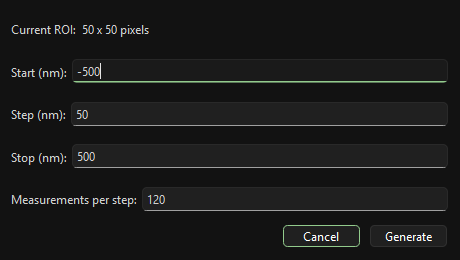
Use Z-LUT > New to enter the sweep range and number of measurements
per step.
The setup values are in nanometers:
Startis the first focus position.Stepis the distance between focus positions. It cannot be zero, and its sign must point fromStarttowardStop.Stopis the final focus position. It must land exactly on the requested step grid.Measurements per stepcontrols how many bead profiles are collected at each focus position. More measurements can make the resulting Z-LUT smoother but make the sweep slower.
The requested sweep must stay inside the focus motor limits. During the sweep, MagScope moves the focus motor to each step, captures fresh tracked bead profiles, and then builds one candidate Z-LUT per captured bead.
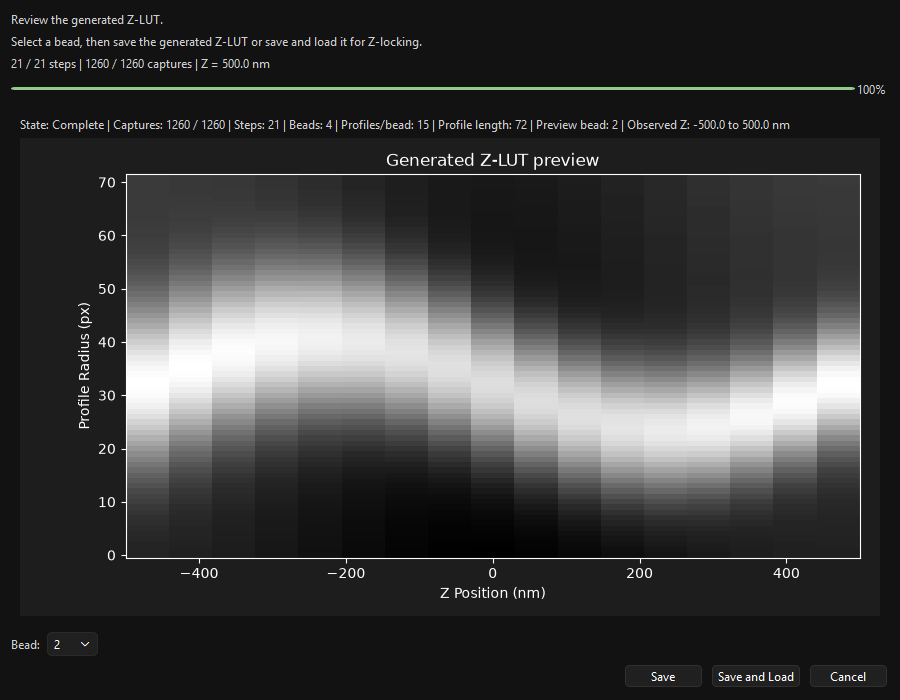
After a sweep completes, review the generated Z-LUT, choose the bead to use,
and save it. Save writes the selected bead’s Z-LUT to disk. Save and
Load writes the same file and immediately makes it the active Z-LUT for the
session.
Z-LUT Text Files#
Generated files are standard text files. The save dialog suggests a name like
generated_zlut_bead_<bead-id>.txt, but you can choose another .txt name.
Each saved file contains one numeric matrix:
The first row contains the Z reference positions in nanometers.
Each remaining row contains one bead-profile sample across those Z positions.
The file must have at least two Z positions and at least one profile row.
The Z reference row must contain finite numeric values.
The number of profile rows is the profile length shown in the Z-LUT panel.
If you change ROI size or tracking/detection settings after generating a
Z-LUT, the loaded file may no longer match the current profiles. In that case
MagScope can warn that the Z-LUT may not match the current ROI or detection
settings. Reload a compatible file, restore the matching settings, or
regenerate the Z-LUT.
Loading, Showing, and Clearing#
Use Z-LUT > Load when you want to activate an existing calibration
file. This is equivalent to using Select Z-LUT File in the Z-LUT panel.
After loading, Z tracking and Z-Lock use the active file, and Unload plus
Show Current become available in the menu.
Use Z-LUT > Show Current to inspect the active file without changing
it. This is useful after importing a file from another session because it shows
the loaded path and a preview of the matrix. If the preview cannot be drawn,
the file may be malformed or not a valid Z-LUT text matrix.
Use Z-LUT > Unload or Clear Z-LUT when you want to stop using the
current Z-LUT. Clearing the Z-LUT does not delete the .txt file from disk;
it only removes it from the active MagScope session. Without an active Z-LUT,
tracking can still run, but Z values may be unavailable and Z-Lock cannot hold
a target focus position.
Why Generation May Be Blocked#
If Z-LUT > New refuses to start, check these items first:
At least one bead ROI must be selected.
The application must have a usable video buffer, which normally means the main window has finished starting.
The data mode must be
Track,Track and Video (ROIs), orTrack and Video (Full).Exactly one
FocusMotorBasehardware manager must be registered. No focus motor, or more than one focus motor, prevents generation.Measurements per stepmust be a positive integer.The sweep must contain at least two focus positions.
The step cannot be zero, must point from start toward stop, and must land exactly on the stop position.
The requested sweep range must fit within the focus motor limits.
If another generation sweep is already running or waiting for review, cancel or finish that workflow before starting a new one.
If generation starts but fails during capture, make sure the bead stays visible inside its ROI throughout the sweep and that tracking continues to produce profiles at each focus position. Try a smaller sweep range or fewer beads when testing the workflow for the first time.
Scripting#
The Scripting panel loads and runs Python scripts that automate MagScope.

A typical scripting workflow is:
Write a Python script that creates a
magscope.Scriptobject.Add script commands to it.
Use
Loadin the Scripting panel to choose the file.Check that the panel reports the script as loaded.
Click
Start.Use pause/resume controls if the script supports a long-running sequence.
Scripts are useful for repeated acquisition routines, motor moves, timed steps, and long experiments with a defined sequence. See Scripting for the full scripting workflow and Scripting Commands for available commands.
Windows and Layout#
MagScope opens one main window with dockable Live Camera and Live Plots
panes. You can undock either pane and move it to another monitor, then dock it
again by dragging it back into the main window.
Viewer docks#
Live Camera and Live Plots are viewer docks. They are controlled by the
top-bar Layout menu and by the dock buttons in the viewer title bars.
Use the Layout menu when a viewer pane is hidden, floating, or no longer
where you expect it:
Show hidden viewer panes.
Dock floating panes back into the main window.
Reset the viewer layout.
Dock All Windows brings the viewer panes back into the main window.
Reset Viewer Layout restores the default camera/plots arrangement. These
commands affect the viewer docks, not the left-side workflow tabs.
Workflow tab layout#
The left-side workflow area contains the Run, Analysis, Locking,
and Motors tabs. This layout is separate from the Live Camera and
Live Plots viewer docks.
If the workflow tabs or control panels are arranged in a confusing way, open
Preferences and use the Appearance/Layout section. Reset Current
Section resets the appearance/layout settings without resetting MagScope,
saving, or tracking preferences. Reset All is broader and should be
saved for cases where you want to rebuild the whole interface configuration
from defaults.
Which recovery option to use#
Use this order when the interface looks wrong:
If
Live CameraorLive Plotsis missing, use theLayoutmenu.If a viewer is floating on another monitor, use
Dock All Windows.If the viewer arrangement is confusing, use
Reset Viewer Layout.If the left workflow tabs or control-panel layout is confusing, reset
Preferences>Appearance/Layout.If imported preferences left the whole interface in a bad state, use
Reset Allas a last-resort cleanup.
Layout changes are useful during experiments with multiple monitors. If a pane
disappears, use the Layout menu before restarting MagScope.
Shutdown and Restart#
To shut down cleanly:
Turn off
Savingif it is enabled.Let any active script finish or stop it intentionally.
Disable repeated lock controls if they are active.
Close the MagScope window.
Wait for shutdown to finish before starting another session.
Shutdown can take a little while because manager processes need to stop cleanly.
You can also call MagScope.stop from
Python.
Do not call start() twice on the same MagScope object. Create a new
object if you need to restart from the same Python interpreter.
Troubleshooting#
The GUI does not open#
Confirm you are using the Python environment where MagScope is installed. If you are following the demo workflow, run the short launch snippet from this guide in a fresh Python interpreter.
The live camera is blank or frozen#
Check that the camera is connected and that the main window is still responsive. In the demo, restart MagScope from a fresh Python session if the simulated feed does not begin. With real hardware, check the camera adapter and connection guide.
ROIs are missing or wrong#
Confirm the ROI count in the Live Camera toolbar. If the wrong bead is selected,
click the intended ROI or enter its ID in Selected Bead (red). If the ROI
box is off center, drag it or remove it and add it again.
Live plots stay blank#
Wait up to about 30 seconds for processing to populate the plot buffer. Then
check that Acquire is enabled, at least one ROI exists, and the selected
bead ID exists. If a reference bead is set, confirm that reference bead ID also
exists.
Saving is enabled but files are not appearing#
Confirm that Saving is checked, Folder points to a real writable
location, and the selected Data mode matches what you expect to save. If you
changed the folder while saving was active, disable saving, choose the folder
again, then re-enable saving.
The video buffer fills repeatedly#
Reduce the amount of work MagScope needs to do. Common fixes are:
Track fewer beads.
Save tracks instead of video.
Avoid full-frame video unless needed.
Disable live diagnostic panels you do not need.
Review video buffer and processor settings in Preferences.
Auto Bead Selection is disabled or does nothing#
Auto Bead Selection needs an active live camera view, a recent image, available ROI capacity, and no other Auto Bead Selection dialog already open. If the menu item is disabled or selecting it does nothing:
Wait until the live camera has drawn at least one frame.
Make sure the
Live Cameraviewer is visible.Finish or close any existing Auto Bead Selection dialog.
Finish any pending manual bead-add action.
Remove unused ROIs if the bead list is already full.
If the dialog opens but does not add beads, the proposed ROIs may overlap existing ROIs or exceed the available bead capacity.
Preferences reject a value#
Preference fields validate types and allowed ranges. If a value is rejected, use the message in the dialog to choose a valid value. Common fixes are to use plain numbers instead of units, avoid negative values for counts and sizes, and keep ROI and buffer settings within practical ranges.
Use Reset Current Section when only one preference group is confusing. Use
Reset All when you want to return MagScope, saving, tracking, appearance,
and layout preferences to defaults.
A script fails or stops early#
Check that the script file was loaded from the expected path and that the
Scripting panel reports it as loaded before pressing Start. If a script
stops early, review the script for invalid command names, missing arguments,
hardware commands that require unavailable devices, or timing assumptions that
do not match the current experiment.
If a script moves hardware or controls locks, test the same steps manually first. See Scripting and Scripting Commands for the expected script structure and command list.
Search has no useful results#
Search is a navigation aid. It shows where controls are; it does not run actions. If the search dropdown has no useful results:
Try a shorter term, such as
ROIinstead of a full sentence.Try the visible label on the button, field, menu, or panel.
Try a related term, such as
reference,relative time,dock, orZ-LUT.Open the likely workflow tab first if the control is inside a collapsed panel.
Settings import or export fails#
Preference import/export uses YAML files. If import fails, confirm the file is a MagScope preferences export and has not been edited into an invalid format. If export fails, choose a writable folder and filename.
Imported preferences can include appearance and layout state. If an imported
layout hides panes or leaves the interface awkward, use Layout > Reset
Viewer Layout for viewer docks or Preferences > Appearance/Layout >
Reset Current Section for the workflow/control layout.
Z-LUT or profile mismatch warnings appear#
Z-LUTs depend on the bead profiles, ROI size, tracking settings, and focus motor sweep used when they were created. If MagScope warns that a Z-LUT or profile does not match the current setup, do not assume Z-Lock will be valid.
Common fixes are:
Reload the Z-LUT that belongs to the current experiment.
Restore the ROI and tracking settings used to create the Z-LUT.
Regenerate the Z-LUT after changing ROI size, profile length, tracking mode, bead selection, or focus-motor setup.
Practice the workflow with the simulated focus motor before using real hardware.